Marketplace
The OrionIQ Marketplace provides a catalog of pre-built agent templates that you can install and start using right away. These templates cover common observability and security use cases, so you can get value from OrionIQ without building agents from scratch.
To access the Marketplace, navigate to OrionIQ > Marketplace in the left navigation menu.
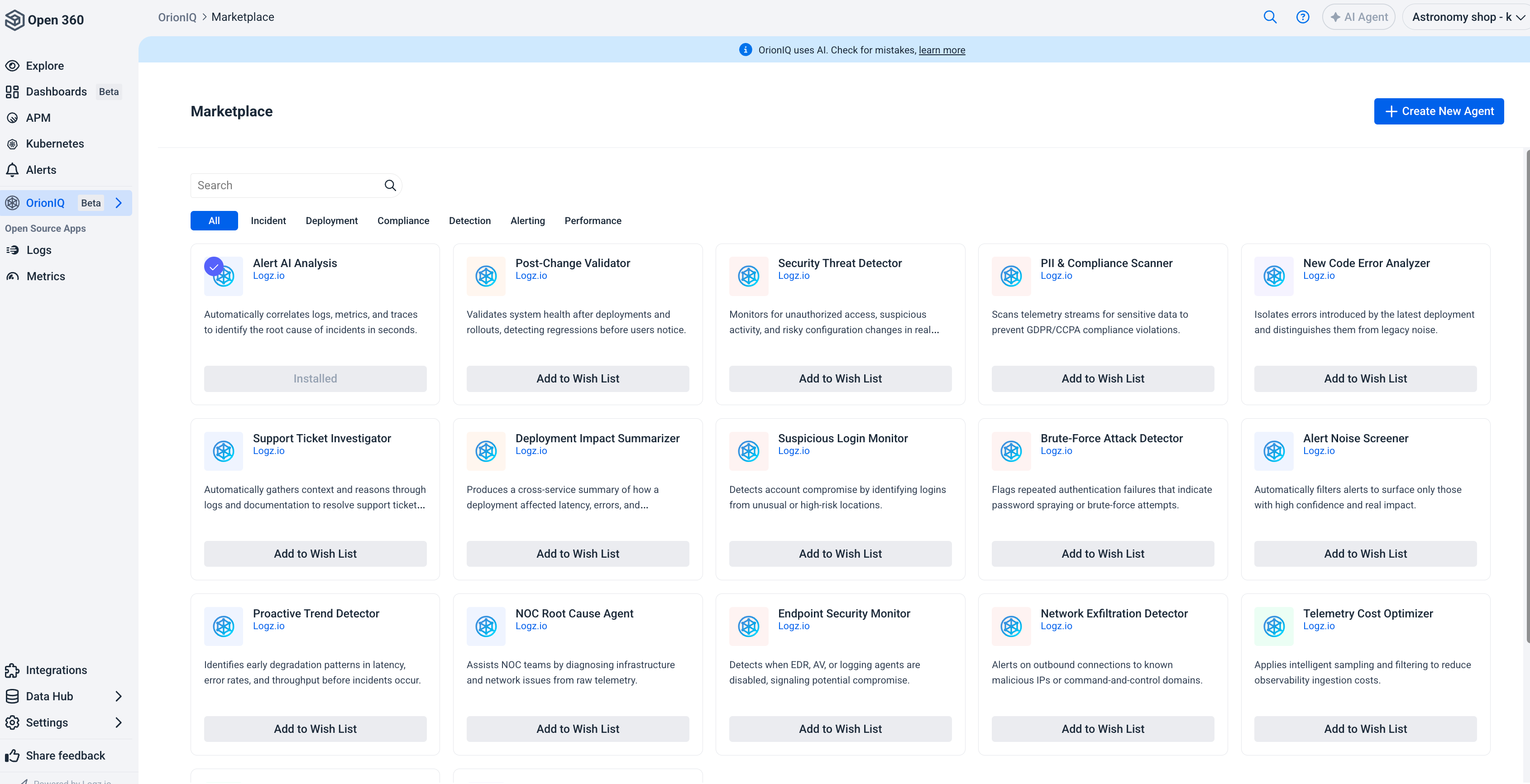
Browse agent templates
Agent templates are organized into the following categories:
| Category | Description |
|---|---|
| Incident | Agents that help investigate and resolve incidents, such as root cause analysis and support ticket investigation. |
| Detection | Agents that monitor for security threats, suspicious logins, and brute-force attacks. |
| Alerting | Agents that filter and prioritize alerts to surface high-confidence, high-impact events. |
| Performance | Agents that identify early degradation patterns in latency, error rates, and throughput. |
Each card shows two tags: Data (Logs, Metrics, or Multi agent for an agent that reads both) and Trigger (Scheduled, On demand, or Per alert). A card whose template sets neither shows no tags. The Review step shows the same tags. Cloud SIEM has no Logz.io metrics, so there an agent that reads logs and metrics is tagged Logs.
Use the search bar at the top of the page to find specific agent templates, or click a category tab to filter the list.
The Marketplace groups its templates into an Open 360 section and a Cloud SIEM section, by the workspace each template runs in. The section for the workspace you are in comes first.
Available templates
| Template | Category | Runs | What it does |
|---|---|---|---|
| Alert AI Analysis | Incident | When an alert fires | Open 360 only. Correlates error logs, related metric anomalies, recent deployments, and the affected request paths, then summarizes the root cause with recommended remediation steps. This is the agent behind AI Agent Analysis. |
| Rule AI Analysis | Incident | When a security rule fires | Cloud SIEM only. Finds the logs and changes that match the rule, checks recent deployments, and traces the affected request paths. It says whether the data shows an attack, a misconfiguration, or a broken log source, then names the most likely root cause and the steps to fix it. This is the agent behind a security rule's Rule AI Analysis step. |
| Root Cause Analysis | Incident | On demand (API) | Open 360 only. Reconstructs the incident timeline, correlates logs, metrics, and traces, inspects recent deployments and configuration changes, and produces a ranked set of probable root causes with supporting evidence and remediation recommendations. |
| Security Root Cause Analysis | Incident | On demand (API) | Cloud SIEM only. Rebuilds the incident timeline from your logs, checks recent deployments and configuration changes, and follows request paths through the trace IDs in the logs. It says whether the data shows an attack, a misconfiguration, or a broken log source, and ranks the possible root causes with the evidence and the steps to fix each. |
| Incident Triage | Incident | On demand (API) | Open 360 only. Loads your runbook, walks through its diagnostic steps against live logs and metrics, evaluates the findings against the runbook's decision points, applies the prescribed remediation guidance, and produces a prioritized list of next steps for the responder. |
| Exception Analysis | Incident | Weekly | Open 360 only. Reads the exceptions Logz.io already clusters for your account and groups variants of the same fault into families. Each family is sorted as new, spiking, ongoing, resolved, or muted, with occurrence counts, a trend, and a link to the logs. Daily runs open with a ranked list of what needs attention today. Exceptions you ask it to ignore stay muted, with your reason, until you ask for them back. Requires the Exceptions capability on the account, which Logz.io Support enables. |
| Alert Digest | Alerting | Weekly | Open 360 only. Summarizes what fired, what resolved, and how long alerts stayed triggered, with a period-over-period comparison, top offenders, first-time alerts, and incident-like episodes. |
| Alert Tuning Report | Alerting | Weekly | Open 360 only. Analyzes triggered-alert history across log and metric alerts and produces a ranked list of concrete tuning recommendations: flapping alerts, fast self-resolvers, severity miscalibration, alerts that always fire together, dead alerts, and services whose alerts went quiet. Each recommendation cites the current value, the proposed value, the supporting numbers, and a link to the alert definition. |
| Error Logs Analysis | Alerting | Daily | Open 360 only. Breaks down errors and warnings by application, compares them with the previous period, and highlights spikes. |
| Log Patterns Analysis | Alerting | Weekly | Open 360 only. Reads the patterns Logz.io already groups your logs into, for this period and the one before, at any log level. It reports patterns that are new, growing against their own earlier count, steady, or gone. Each item names the pattern's level and service and links to its logs, and the report closes with the share of logs the patterns matched. Exception-tagged logs are left to Exception Analysis. For a daily report, set the schedule to daily and change the opening "Cadence: weekly" in the message to "Cadence: daily". |
| Log Distribution Monitor | Performance | Daily | Open 360 only. Analyzes log volume distribution and trends across services to detect anomalies, identify cost drivers, and keep logging healthy. |
| Identity Threat Hunter | Detection | Daily | Cloud SIEM only. Finds the login attacks your security rules miss: brute force, password spraying, logins without MFA, MFA fatigue, and logins from Tor or flagged addresses. |
| Malicious Command Hunter | Detection | Daily | Cloud SIEM only. Finds the suspicious commands your security rules miss: shells spawned by servers, download-and-run commands, encoded commands, credential-dumping tools, and commands run in containers or through cloud consoles. |
| DDoS Detector | Detection | Daily | Cloud SIEM only. Finds the floods and volumetric abuse your security rules miss: request floods per source, bursts of 429 and 503 responses, connection floods, and API throttling. Its burst rules are measured against your normal traffic. |
| Data Theft Coverage Check | Detection | Daily | Cloud SIEM only. Formerly Data Exfiltration Hunter. Finds the data theft your security rules miss: large outbound transfers, bulk downloads from cloud storage, data shared outside the account, uploads to file-sharing services, and DNS tunnelling. |
| Privilege Escalation Hunter | Detection | Daily | Cloud SIEM only. Finds the privilege grabs your security rules miss: admin policies attached, keys or passwords made for other users, unusual role assumption, sudo abuse, and Kubernetes RBAC changes. |
| Security Control Tampering Detector | Detection | Daily | Cloud SIEM only. Finds the audit tampering your security rules miss: logging stopped or deleted, security tools disabled, policies weakened, and logs cleared. |
| Malware and C2 Analyst | Detection | Daily | Cloud SIEM only. Finds the malware, command-and-control traffic, and network intrusion your security rules miss: IDS signature hits, malware detections, traffic to flagged addresses, port scans, and Tor traffic. |
| Cloud Sabotage and Cryptojacking Detector | Detection | Daily | Cloud SIEM only. Finds the destructive and abusive cloud activity your security rules miss: mass deletions, backups and keys removed, mass compute launches, and cryptomining. |
| Security Rules Digest Report | Detection | Weekly | Cloud SIEM only. Counts the security events each rule produced in the period, groups them by log source and severity, and compares them with the previous period. It highlights top offenders and the entities behind them, rules that fired for the first time, multi-rule episodes, and off-hours activity, correlated with the logs of the accounts you select. It changes nothing. If you change the schedule, change the opening "Cadence: weekly" in the message to match. |
| Security Rules Tuning Report | Detection | Weekly | Cloud SIEM only. Ranks concrete changes to your security rules from their event history: always-on, miscalibrated, single-source, co-firing, muted, dead, and gone-quiet rules. It checks rule log sources against your log accounts and the Tor exit list. Each recommendation gives the current value, the proposed value, the supporting numbers, and a link to the rule. It changes nothing. |
| CVE Analyst | Detection | Daily | Cloud SIEM only. Formerly CVE Analyzer. Checks the high-severity CVEs (CVSS 8.5 or higher) of the last 90 days against the last day of your logs, then the ones known or likely to be exploited. It reports which touch your environment, creates a tested rule where an exposed CVE has none, keeps its own rules up to date, and suggests improvements to existing ones. A CVE with no related data in the selected accounts is reported as no action needed. |
| Vulnerability Threat Sweep | Detection | Daily | Open 360 only. Read-only. Finds the products, runtimes, and versions in your logs, metrics, and container images, including dependency scanner alerts, and checks them against the last 90 days' vulnerabilities at severity 8.5 of 10 or higher, then the ones attackers already use. For each product, it compares the running version with the latest version and looks for attack signs in your logs and metrics since the last run. The report opens with a summary, then groups the results by account and product, most urgent first: the running version, the latest version, the vulnerabilities fixed after the running version, and what to do. It replaces CVE Sweep. To keep sweeping with an agent you activated from CVE Sweep, activate Vulnerability Threat Sweep in its place. |
| SOC Triage | Incident | On demand (API) | Cloud SIEM only. Turns a fired security rule into a verdict: true positive, false positive, or benign true positive, with escalate or close. It works through your runbook step by step, maps the activity to its MITRE ATT&CK technique, traces the same user, host, or address across your accounts, and lists the response steps. It gives no verdict without a runbook. |
Cloud SIEM has its own copy of four Open 360 templates. Each copy works like its original and is named with a Security prefix: Security Exception Analysis, Security Error Logs Analysis, Security Log Patterns Analysis, and Security Log Distribution Monitor.
Security rule agents
The eight threat-category templates from Identity Threat Hunter to Cloud Sabotage and Cryptojacking Detector replace Security Rules Management, which is no longer in the Marketplace. Each one creates a rule where an attack pattern has none, tests it against 7 days of logs, keeps its own rules up to date, and recommends changes to rules people wrote.
These agents and CVE Analyst need a Cloud SIEM (Security) account connection with write access. Without it, they report the rules they would create instead of creating them. Every rule they create or update carries the orioniq-ai-authored tag.
How Incident Triage works
Incident Triage executes your runbook step by step and follows its branches, recording each step as met, not met, branched, or skipped.
When the agent's integrations have Read & Write permission (see Agent permissions), it applies the remediation your runbook authorizes, such as updating a Logz.io alert, opening a Jira ticket, or adding a PagerDuty note, and marks each remediation item as applied or recommended.
It then checks live telemetry and reports the incident as resolved, contained, active, or needing escalation. A resolved verdict requires the triggering condition to be absent from the evidence and a runbook remediation to be in effect; otherwise the agent escalates to a human.
Activate an agent template
Click View details on a template card to open a three-step dialog: Review, Set up, and Done. The agent is created switched on when you finish Set up.
Alert AI Analysis and Rule AI Analysis are the exception. You turn them on from an alert or a security rule, not from the Marketplace, so their dialog shows Review only, with a Close button. A Runs on your alerts notice links to your alerts with Go to alerts, or to your rules with Go to rules in Cloud SIEM. See AI Agent Analysis.
Review
Review shows what the agent does before you commit: when it runs, what it produces, what data it needs, and its price per run. If the price can't be loaded, Review says so, and you can activate once it loads.
Click Set up agent to continue.
Set up
The template decides which fields appear. A field shows only when the template lets you change it. Anything hidden keeps the template's value.
| Field | What you set |
|---|---|
| Name | Prefilled with the template's name. When you already have agents from this template, it is numbered, for example "Alert Digest 2". |
| Runbook | Required when the template needs one, as for Incident Triage. Shown for agents that run on demand, and for a scheduled template that ships its own runbook. |
| Data sources | The accounts and connections the agent reads logs and metrics from. For an agent that reads logs, the account you are on is selected by default. For an agent that reads metrics, the account's Logz.io metrics account is selected when it has exactly one. When it has none and the agent can read more than one platform, the first connected metrics connection on another platform, such as Grafana, is selected instead. Otherwise the Metrics row isn't shown and the agent reads logs only. |
| Schedule | For a scheduled agent: how often it repeats, the days, the hour, and the time zone. A weekly agent can run on several days, picked with the same day toggles as the agent editor. The next run is the nearest of those days, shown in the schedule's own zone. |
| Send results to | Who gets notified of the agent's results. |
| Integrations | The integrations the agent can use. |
| Instructions | The context message a scheduled agent runs with. |
Data sources, Send results to, and Integrations open in a picker. Each selected item has a remove button.
The side panel summarizes the agent, its expected runs, and its cost. On narrow screens the summary moves into the main column.
Billing choices:
- After the free runs: Keep running (the default), billed per run, or Turn off. If you can't see pricing, the choice is not offered.
- Daily run limit: For agents that run on demand, set the maximum runs a day. It starts at 5. Clear the box for no limit.
If you already have an agent from this template with the same runbook, data sources, schedule, integrations, and instructions, Set up warns You already have an agent with this setup and links to it. An agent that is turned off still counts. The warning doesn't block you: the first Activate agent points at the warning, and a second click creates the agent.
Click Activate agent. If required fields are missing, the dialog lists how many need attention and moves you to the first one. If you close the dialog after changing the setup, OrionIQ asks before it discards your changes.
Learning is off for agents activated from the Marketplace. You can turn it on later in the agent's Agent details form. See Learning.
Done
Done confirms the agent is active and shows what happens next:
- First run: the next scheduled time, "When you start it", or "When an alert fires".
- Free runs: how many are left.
- After free runs: whether the agent turns off or keeps running at your price per run.
- Daily limit: shown for agents that run on demand.
- Results: the recipients, or the run history in Agents Hub.
Click Run a test to start the agent once with sample input. It uses one of the free runs, or is billed at the price per run when the template has none. Results appear in the agent's run history in Agents Hub. If the test can't start because of a daily limit or budget cap, Done says which one.
Done also offers one optional follow-up. A scheduled agent with no recipients offers Add recipients. An agent that runs on demand offers Connect an alert.
The What you set up panel recaps your choices. To change them later, open the agent in Agents Hub.
Click Open in Agents Hub to see the new agent, or Done to close the dialog.
You can activate a template more than once. Once agents exist for a template, its card shows the number of active agents, up to 99+. Click it to open the Agents Hub filtered to those agents. To switch an agent off, use the Agents Hub.
Free trial
Every agent you activate from the Marketplace starts with a free trial. The template card, the Review and Set up steps, and the Done step all show how many free runs the agent has.
If you choose Turn off, the agent switches off when the free runs are used and nothing is charged. In the Agents Hub, the Free/Billed column shows the free runs left, and an agent whose trial is over is marked Trial ended. Nothing runs or is charged until you turn it back on, and turning it on again asks you to confirm that each run is billed. The confirmation names no amount and links to the agent's pricing in the Marketplace.
Template cards and the Review step show your account's own price per run. If the price can't be loaded, the price is left out and the free trial is still offered.
If you can see pricing, Set up and the agent form also offer the after-free-runs choice, and Keep running is selected by default. The agent then keeps running, billed per run, once the trial ends. Select Turn off to stop it instead. The choice is offered only for agents activated from the Marketplace, not for custom agents.
To build a custom agent from scratch, click Build an Agent in the top right corner.