Integrations
Integrations connect your OrionIQ agents to external systems, giving them access to additional context and enabling interoperability across your toolchain. For example, an agent can pull data from a ticketing system or push results to a collaboration platform.
To access Integrations, navigate to OrionIQ > Integrations in the left navigation menu.
In Open 360 and Cloud SIEM, open AI Agents > AI Connectors in the left navigation menu. The page is titled Connectors. The old /integrations/ai address redirects there.
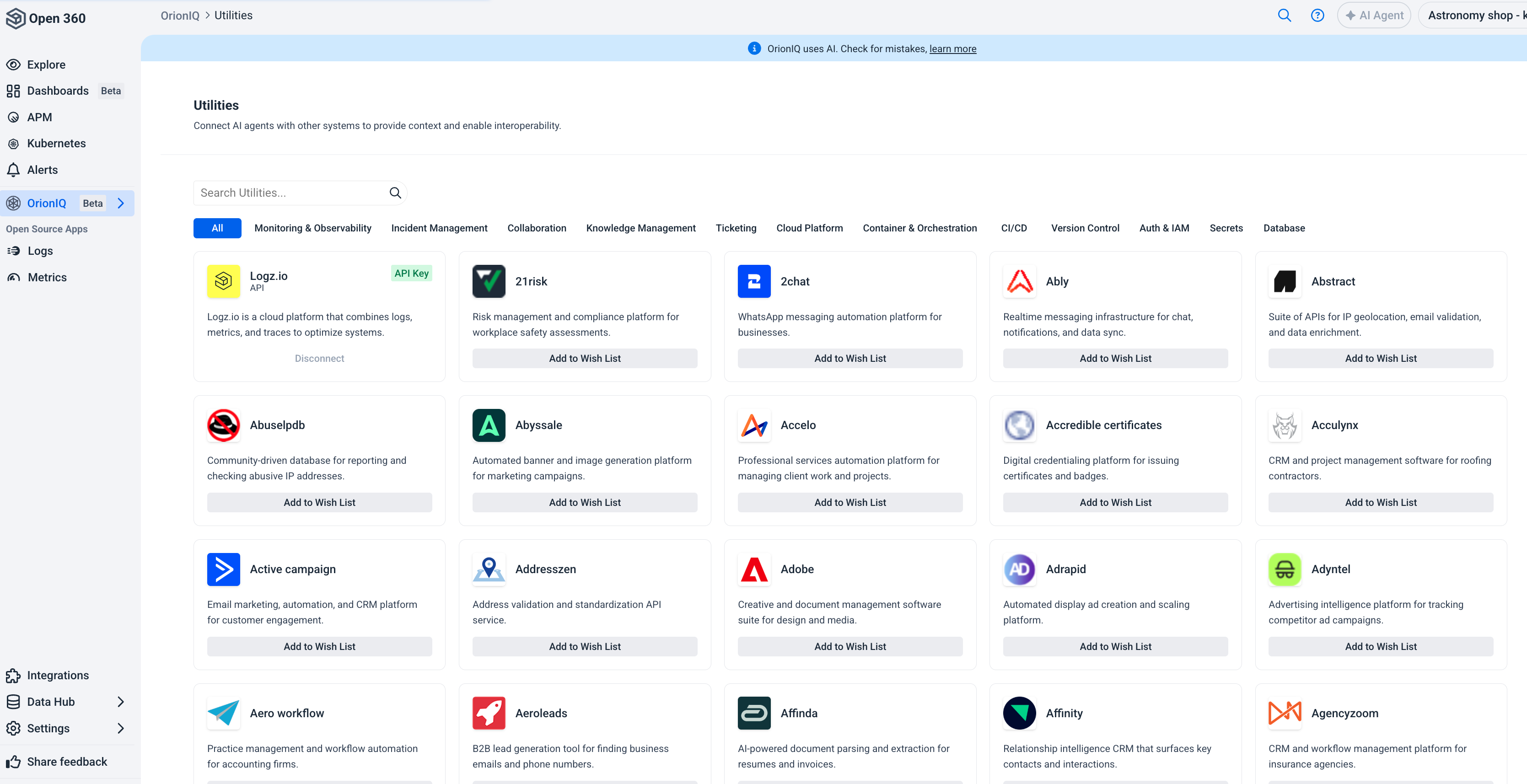
The page has two tabs:
- Catalog — every integration OrionIQ supports, and where you connect one.
- Management — the connections your account has already made, and their health.
Catalog
Integrations are organized into the following categories:
| Category | Examples |
|---|---|
| Observability | Logz.io, Datadog, Grafana, AWS CloudWatch, New Relic |
| Incident Management | PagerDuty, Opsgenie, FireHydrant, incident.io, Rootly |
| Communication | Slack, Microsoft Teams |
| Service Management | Jira Cloud, Jira Service Management, Intercom, Asana |
| Knowledge & Content | Confluence Cloud, Agility CMS |
| Developer Tools | GitHub, GitLab, Argo CD |
| Cloud & Infrastructure | AWS EC2, AWS ECS, AWS EKS, AWS Lambda |
| Databases & Warehouses | AWS DynamoDB, AWS RDS, Azure SQL Database, ClickHouse, Databricks |
| Security & Identity | 1Password, AbuseIPDB, Aikido Security |
| Analytics & BI | Amplitude, Databox, Fathom |
| AI & Machine Learning | Anthropic, AI21 Labs |
| Files & Docs | Airtable, Box, Canva |
| Sales & CRM | Salesforce, Gong, Apollo.io |
| Marketing & Social | ActiveCampaign, Ahrefs |
| Finance & Payments | AWS Cost Explorer, Azure Cost Management, Alpaca |
| HR & People | BambooHR, Ashby, Breezy HR |
Use the search bar to find a specific integration, or pick one or more categories from the Categories menu to filter the list. Each category shows how many integrations it holds. Turn on My Integrations in the same menu to see only the categories your account's integrations are in, and click Select All to show the whole catalog again. The catalog is ordered by popularity, so the integrations most accounts connect appear first.
Connect an integration
Click Connect on an integration and provide its credentials. Which method an integration uses depends on the integration:
| Method | Description |
|---|---|
| API Key | Connect using the provider's API token. This is what most integrations use. |
| Basic Auth | Connect with an email address and API token. |
| None | A few public data sources, such as MITRE ATT&CK, Hacker News, the Tor exit list, and endoflife.date, need no credentials at all. |
Connect your own API
The Custom API integration, under Developer Tools, connects an HTTPS API of your own. It is available to every account. The agent calls the endpoints that its instructions describe.
| Field | What you set |
|---|---|
| API host | The hostname only, with no https://, port, or path. It must have a public DNS name and serve HTTPS. |
| Auth type | How the credential is sent on every request: No auth, Bearer token, API key (header), API key (query parameter), or Basic auth (username:password). |
| API key name | The header or query parameter name. Used only by the two API key auth types. |
| Credential | The bearer token, the API key, or username:password. Leave it empty for No auth. It is stored encrypted and never shown to the agent. |
| Health-check method | GET, or POST with no body for an API that accepts only POST. |
| Health-check path | The endpoint the connection test calls, with no leading slash. Required for GET. With POST, leave it empty to call the host's root. |
| Expected status | Optional. The status codes that prove the credential works, separated by commas, for example 400 for an API that refuses an empty POST only after accepting the credential. Leave it empty for any 2xx. 401, 403, 404, 405, 407, 429, and 5xx can't be expected. |
| Response field | Optional. A field a good response carries, written as $.a.b. Leave it empty to check the status only. |
| Field equals | Optional. The value the response field must equal, written as text: true, 1, null, or ok. Leave it empty if the field only has to be there. |
By default, the connection test counts a 2xx response as connected, and a 400, 401, 403, or 422 as a rejected credential. Set Expected status, Response field, or Field equals to change what counts as connected.
Management
The Management tab lists your account's connections. A Logz.io account with sub-accounts appears as a single connection here — its Needs attention status reflects the account or any of its sub-accounts.
| Column | Description |
|---|---|
| Integration | The connected integration. |
| Space | The space the connection belongs to. |
| Status | The connection's health — see below. |
| Connected by | The user who created the connection. |
| Used by | How many agents use the connection. Click the count to see which ones, with a link to each agent's invocations and its definition. |
| Connection | The connection's name, and the authentication method it uses. For the system-managed Logz.io connection, it shows the highest Logz.io API access granted: Telemetry, Read, Write, or Admin. |
| Updated by | The user who last changed the connection. |
| Updated at | When the connection was last changed. |
| Validated at | When the connection's credentials were last verified. |
A connection reports one of these statuses:
| Status | Meaning |
|---|---|
| Connected | The credentials are valid and the integration is reachable. |
| Needs reauth | The credentials were rejected and must be re-entered. |
| Expired | The credentials are no longer valid. |
| Unreachable | The provider couldn't be reached. |
| Needs credentials | The connection has no usable credentials. |
Open a connection's actions menu to Configure its credentials, Revalidate it against the provider, or Disconnect it. Both the connect and configure dialogs show the integration's full description under its name.
Agent permissions
By default, agents can only read from a connected integration. To let an agent write to one too — opening a ticket, updating an alert, and so on — grant write access at two levels:
- Account-wide, with the Permissions select in the Management tab header, next to Add integration. It reads Permissions: Read or Permissions: Read & Write. Read is the default: agents read your connectors' data and change nothing. Read & Write lets agents also make changes on the connections you allow. Only an account admin can change it; for everyone else the select is disabled. This is the account's master switch: while it's set to Read, no individual connection can be given write access, whatever that connection's own setting.
- Per connection, in the connect form or Configure. Integrations that support write actions show an Agent permissions choice of Read or Read & Write. It's only selectable once the account-wide setting allows it.
Both levels must allow write for an agent to actually write through a given connection. Not every integration supports write actions — those show Read only, with no choice to make.
Logz.io API access
The Logz.io integration is connected by default and gives agents access to your observability data. You can also grant agents scoped access to the Logz.io public API, per account:
| Scope | Grants |
|---|---|
| Telemetry | Logs and metrics access for the agent. Always on for every accessible account and not configurable. |
| Read | The agent can call the Logz.io public API but can't change anything. |
| Write | The agent can create and update Logz.io objects. Implies Read. |
| Admin | The agent has the same role as Manage API Tokens. Implies Read and Write. |
| Shipping | Agents can send logs into the account. |
Each account gets one API token for OrionIQ, named OrionIQ API Token (System generated), with the role of the highest scope you chose: read-only for Read, user for Write, admin for Admin. Read is on by default when OrionIQ first finds an account, if you can manage API tokens and the account's plan has API access. Accounts connected before Read became the default are offered it once as well. Untick it to delete the token. Once you turn Read off, it stays off.
The token can be shared by more than one account's OrionIQ, for example the owner account's or a Cloud SIEM account that scans this account. Changing the scope replaces the token with one at the new role for all of them. Turning off API access deletes the token, unless another account's OrionIQ still uses it. Agents keep their telemetry access either way.
You can't delete the OrionIQ API token or change its role in Manage tokens. To replace it, use Rotate there. A token deleted outside OrionIQ isn't replaced on its own: rotate it, or turn API access off and on. See Manage API Tokens.
Owner, sub-accounts, and Security accounts have a public API. Metrics, Timeless, and Restored accounts do not, so API scopes aren't available for them.
Write, Admin, and Shipping need agent permissions set to Read & Write (see Agent permissions). While they are set to Read, these three can be turned off but not on, and agents can't use a grant that is already on.
Shipping
Turning on Shipping for an account creates a log shipping token named OrionIQ Shipping Token (System generated) in that account, and agents send logs to the account's listener with it. Before you save, the dialog lists the accounts that get a token. Turning Shipping off deletes the token and lists the agents that ship logs to those accounts and will stop.
Shipping is available for owner accounts and sub-accounts. Security accounts don't accept agent logs, so their Shipping box is disabled. Turning Shipping on needs permission to manage API tokens, and the account must be under its plan's limit for enabled log shipping tokens.
Each account with Shipping on gets a Log shipping connection. In the Management tab it shows the account's name and Shipping Token in the Connection column. To let an agent ship logs, add that connection in the agent's Integrations, where it's listed as Log shipping: followed by the account's name and ID.
You can't edit, delete, or disable the OrionIQ shipping token in Manage tokens. To replace it, use Rotate there. See Log shipping tokens.
To request an integration that isn't yet available, click Add to Wish List on the integration you're interested in. This helps Logz.io prioritize which integrations to support next.
Integrations is an evolving capability. New integrations are added regularly based on user demand.